
Step 1: Access the Developer Dashboard
- Open your web browser and navigate to the Meta Developer Dashboard.
- Log in to your developer account using your credentials.
Step 2: Configure Webhooks
-
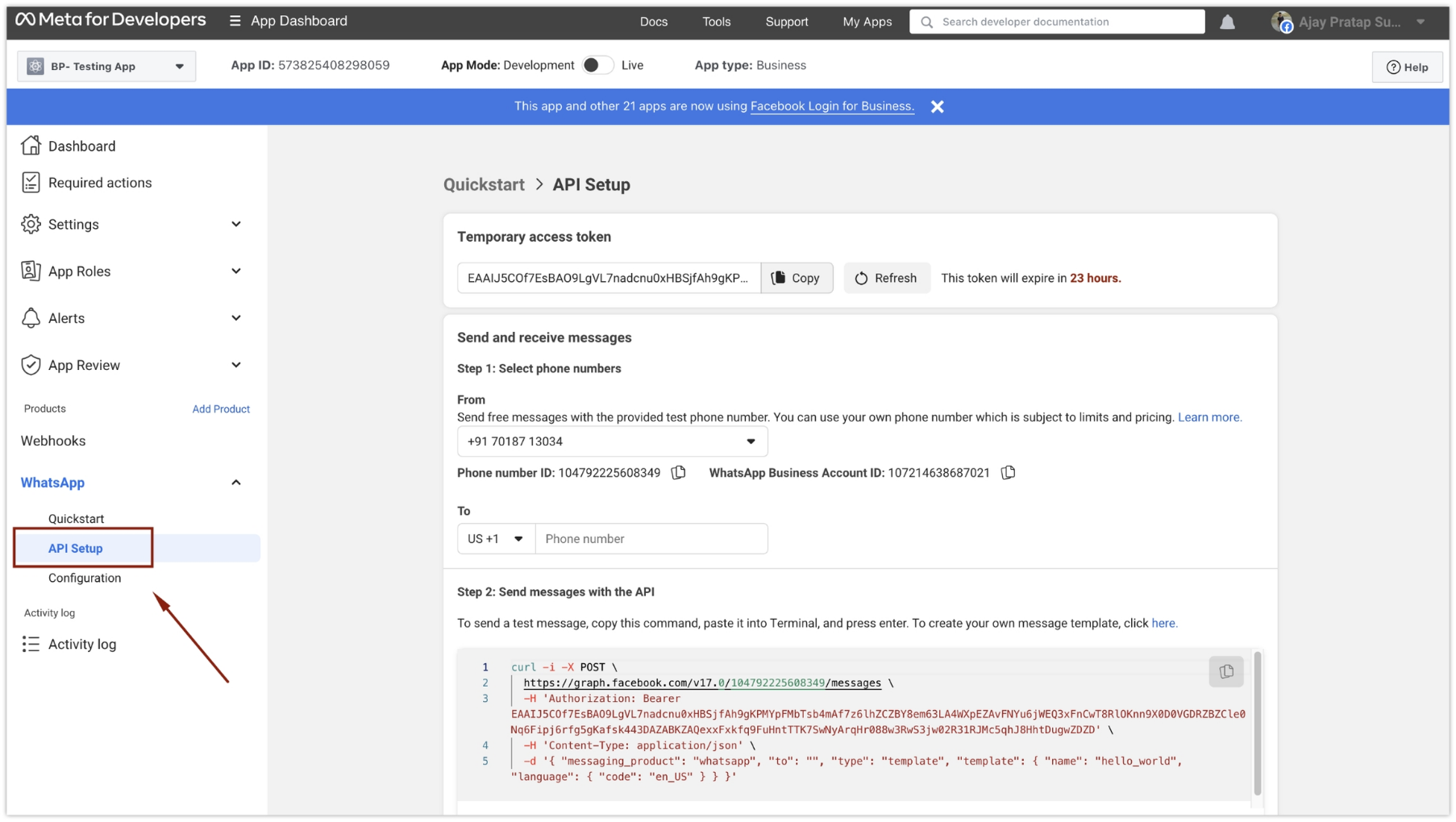
Go to the “API Setup” section under “WhatsApp” in the dashboard sidebar.
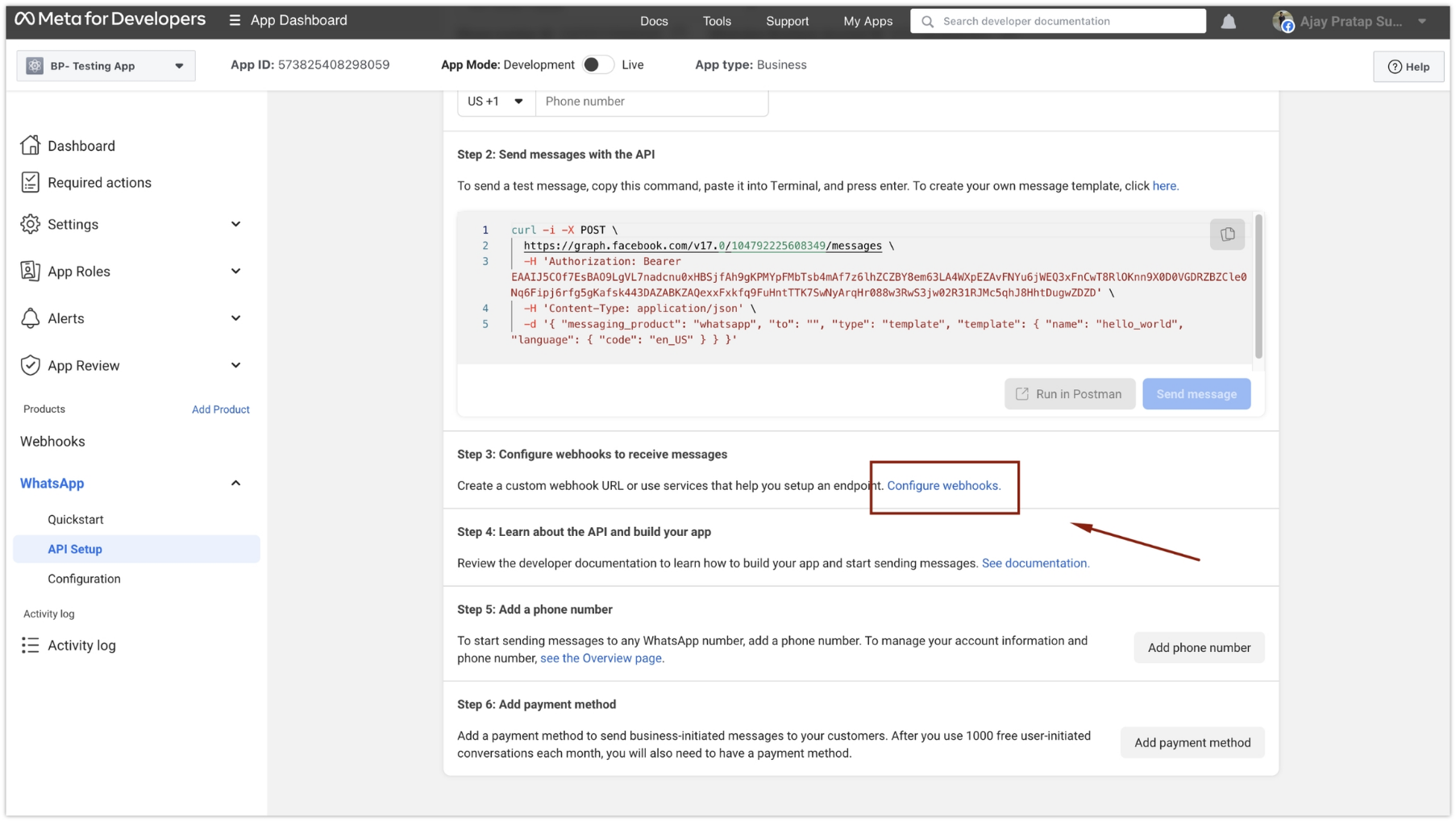
- Proceed to “Step 3: Configure webhooks to receive messages” in the API setup page.
-
Click on the “Configure webhooks” button.
Step 3: Edit Webhook Callback URL
-
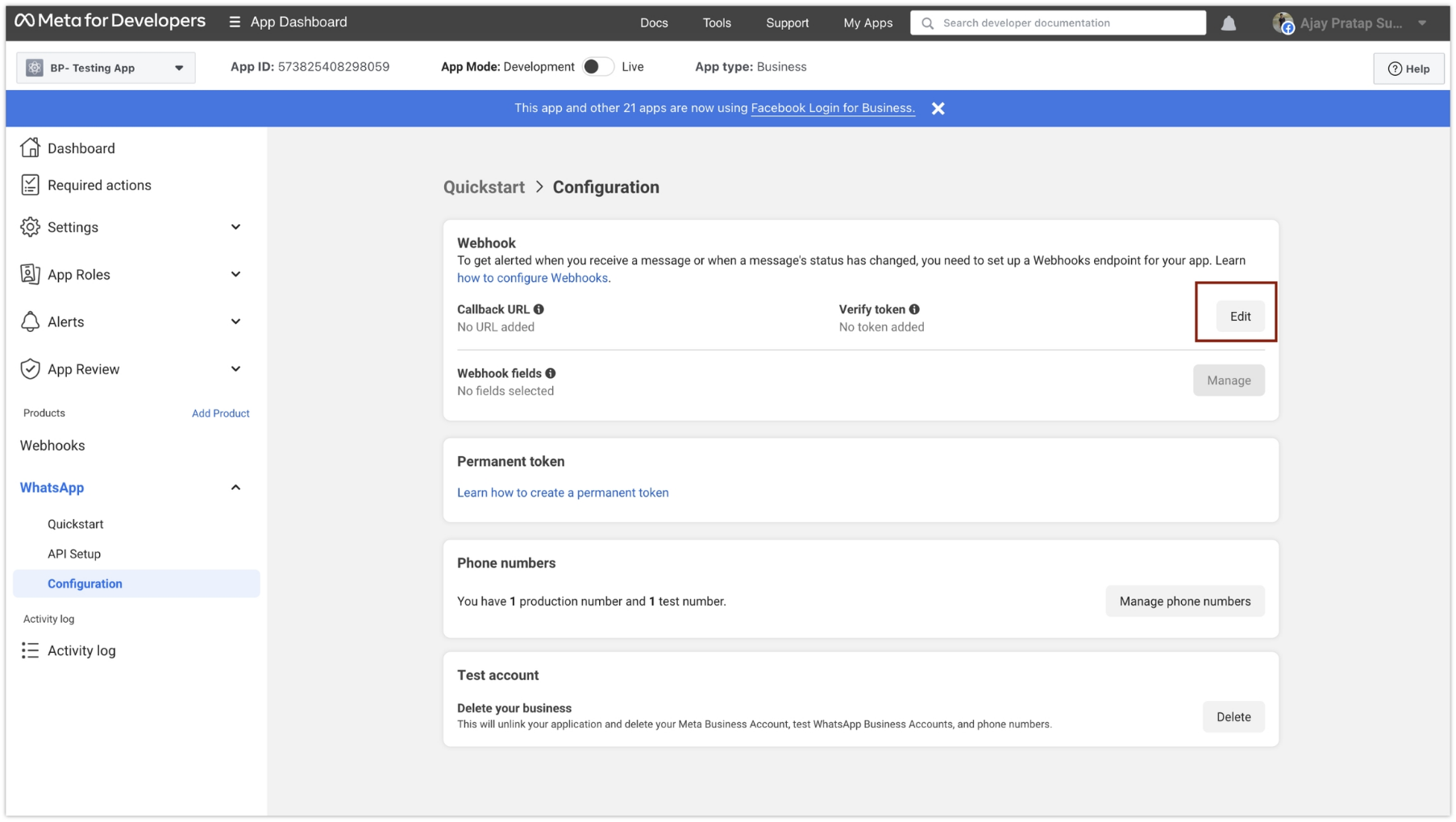
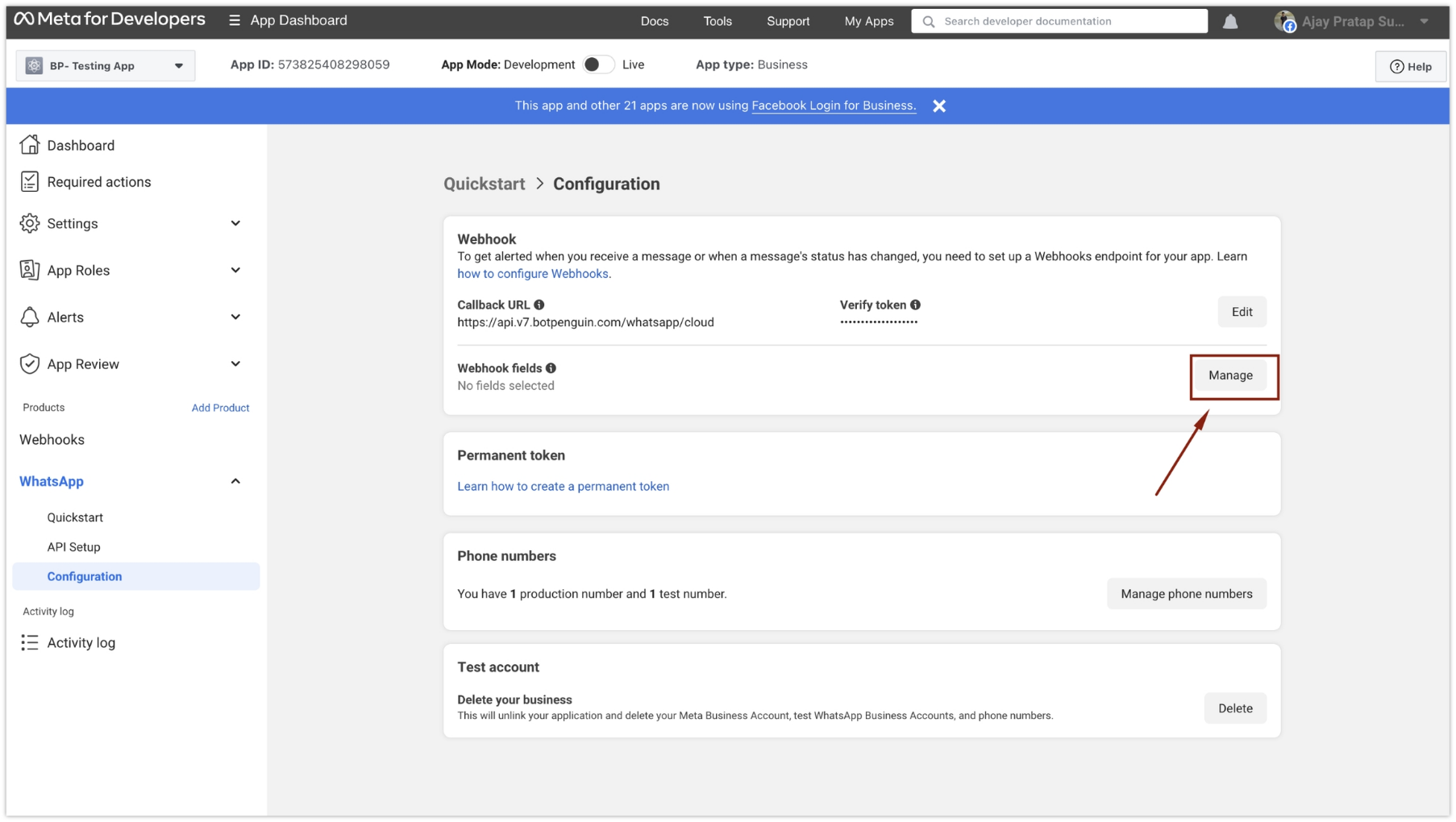
Under the “Configuration” page, click on the “Edit” button.
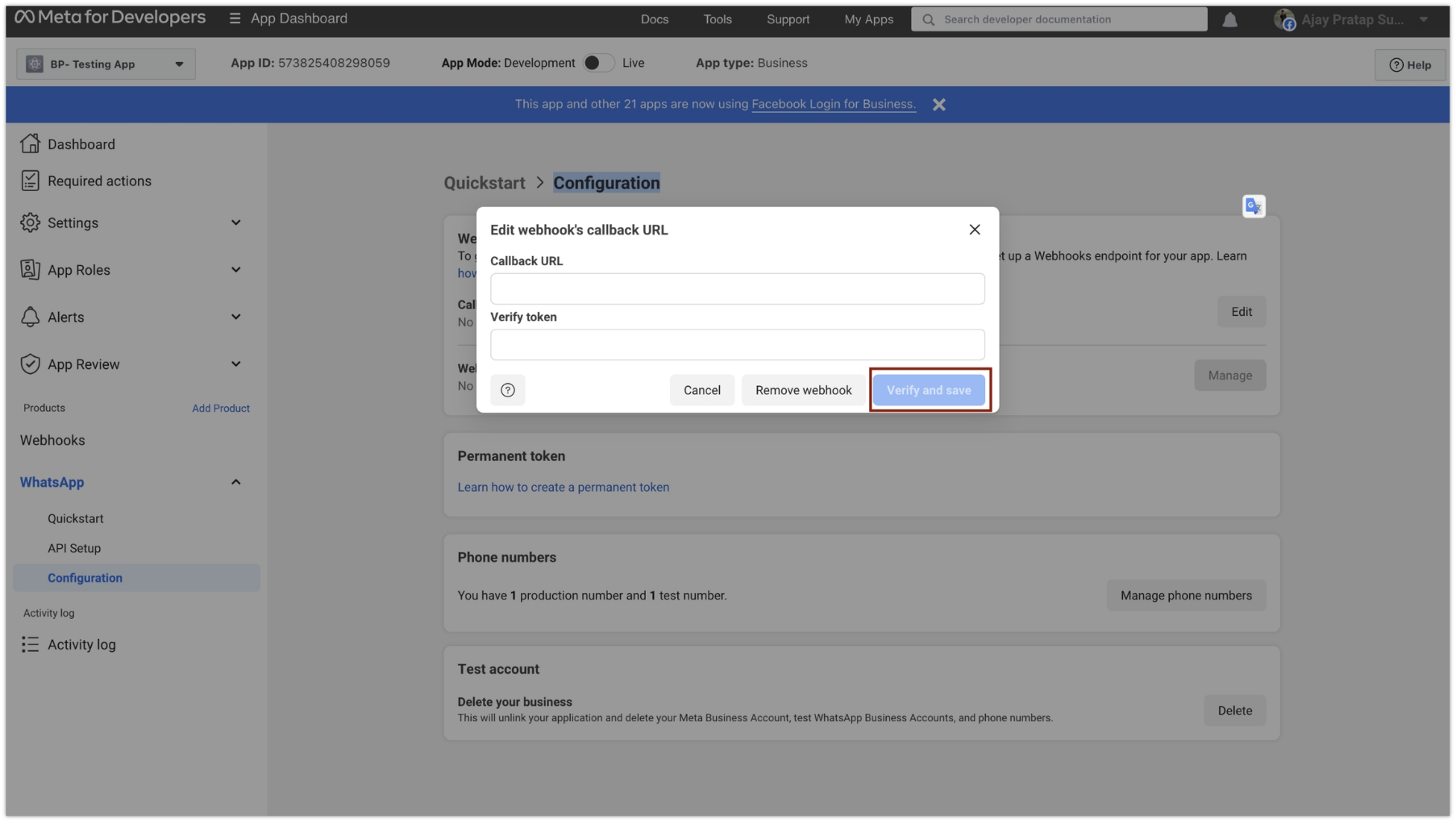
- A pop-up titled “Edit webhook’s callback URL” will open.
-
Enter the following information:
- Callback URL:
https://api.v7. Convertalk.com/whatsapp/cloud - Verify token:
Convertalk
- Callback URL:
-
After entering the details, click on the “Verify and save” button.
Step 4: Subscribe to Webhook Fields
-
Once the webhook URL is saved, click on the “Manage” button to subscribe to the webhook fields.
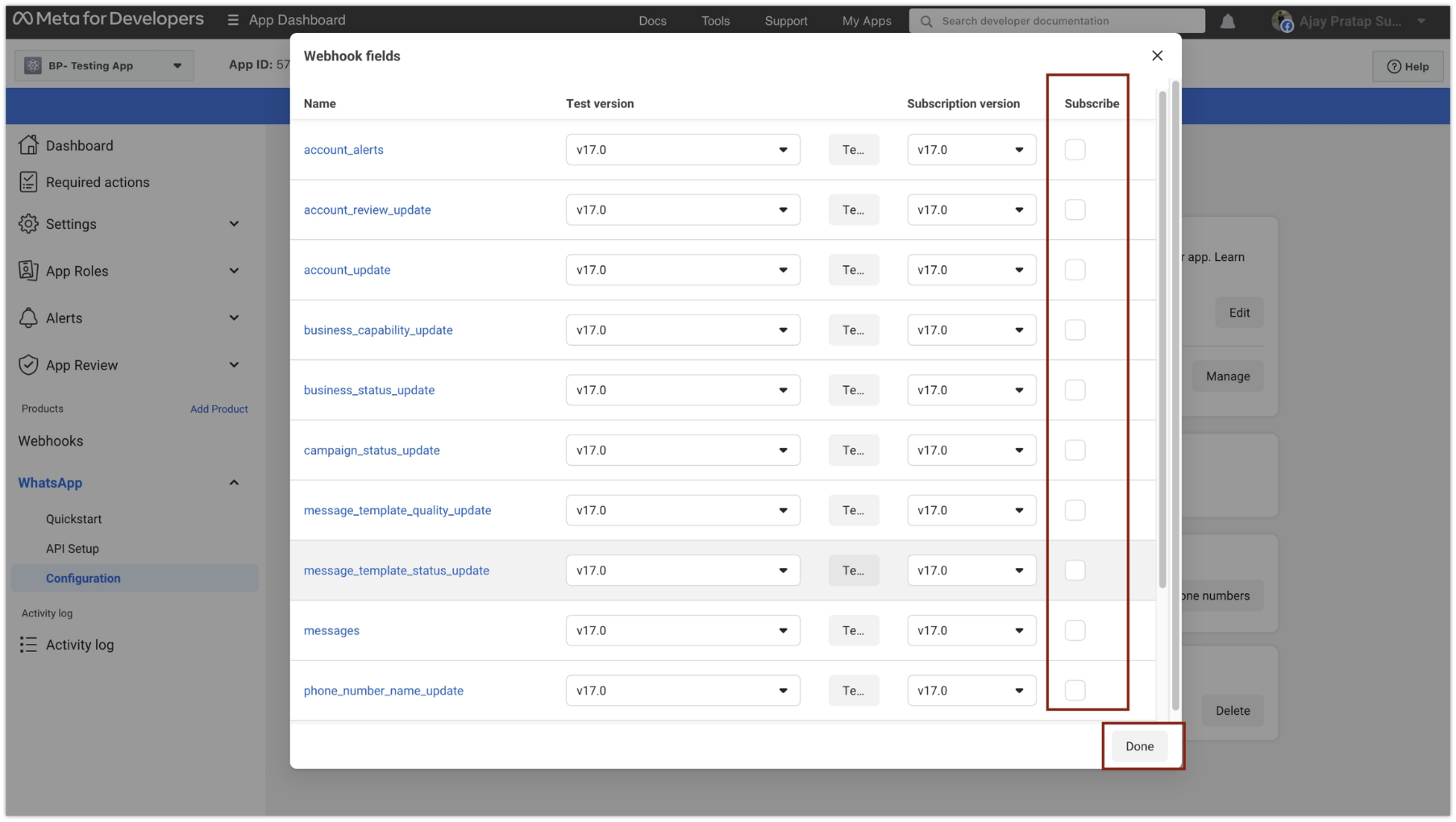
- When the “Webhook fields” pop-up appears, subscribe to all available fields.
-
Save your selections.
https://api.v7. Convertalk.com/whatsapp/cloud).
Please note that the process of subscribing to webhooks may be subject to changes or updates in the Meta Dashboard. If you encounter any difficulties or issues during the process, refer to the official Meta documentation or contact Convertalk support team for further assistance.