
Step 1: Access the Developer Dashboard
- Open your web browser and navigate to the Meta Developer Dashboard.
- Log in to your developer account with the appropriate credentials.
Step 2: Add WhatsApp Product
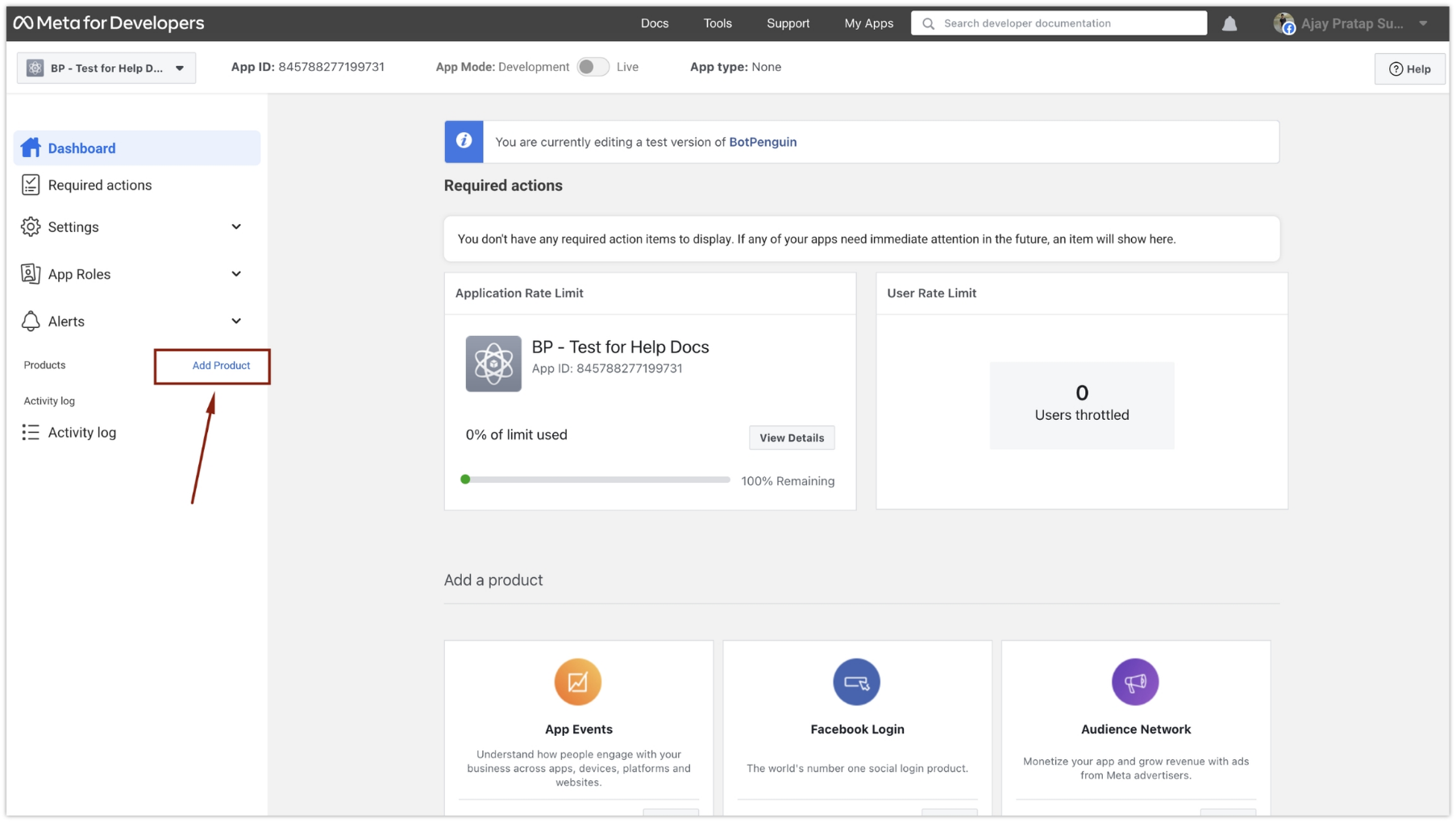
- Once you are logged in, locate the sidebar on the dashboard.
-
Click on the “Add Product” option.
Step 3: Set Up WhatsApp Product
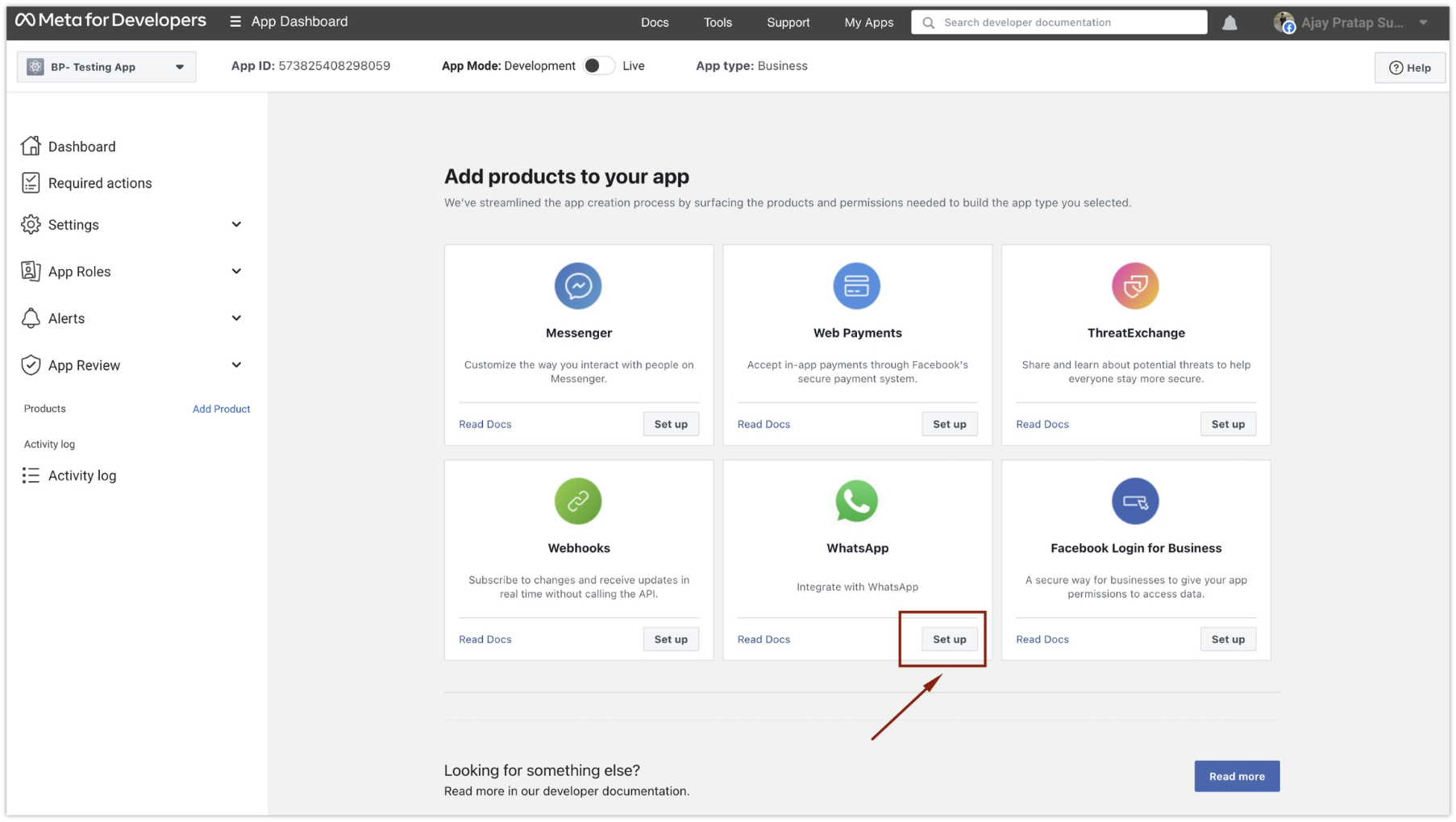
- In the list of available products, find and select “WhatsApp.”
-
Click on the “Setup” button associated with the WhatsApp product.
Step 4: Navigate to API Setup
-
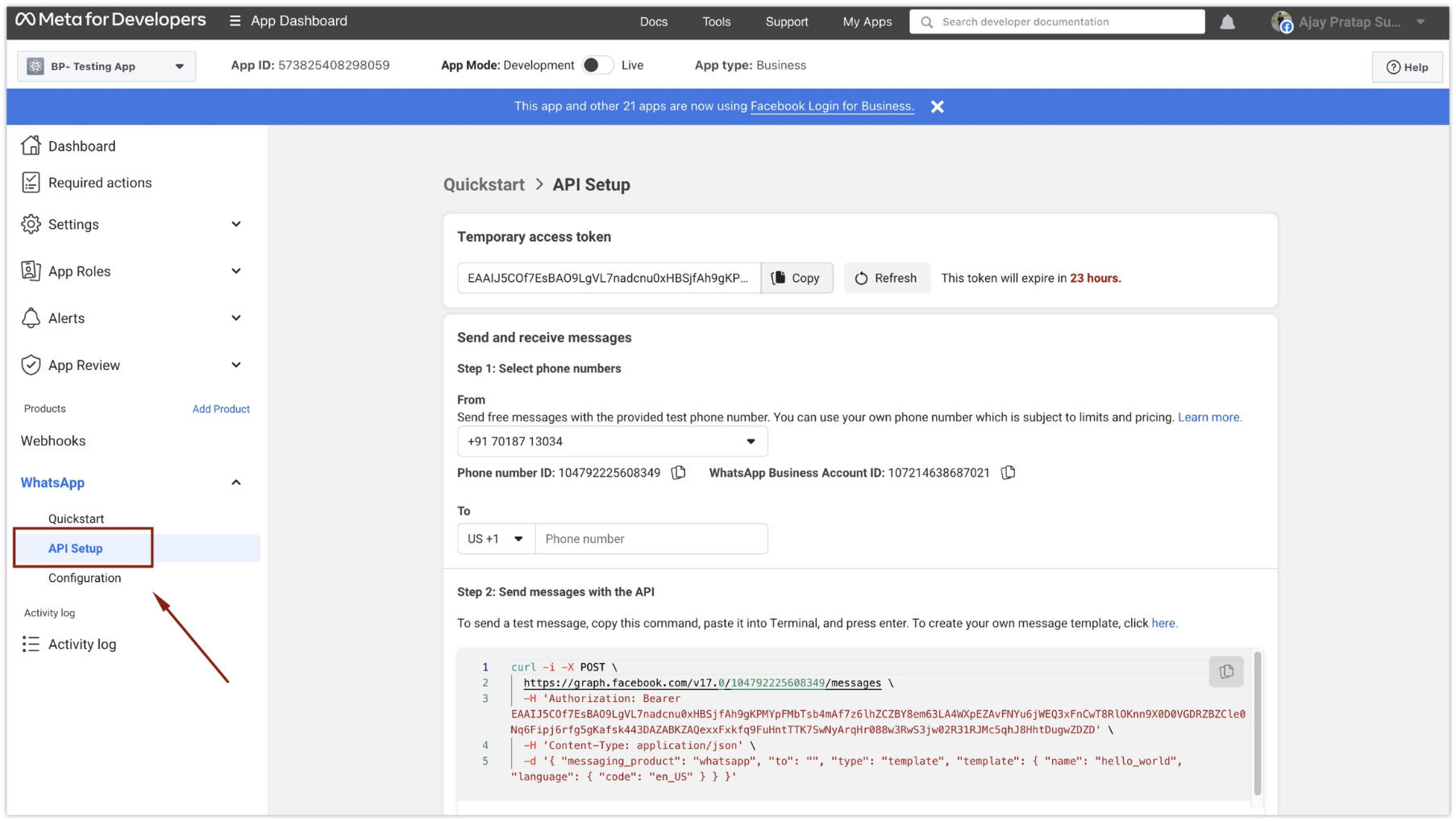
In the sidebar, find and click on the “API Setup” option under the “WhatsApp” section.
Step 5: Add Phone Number
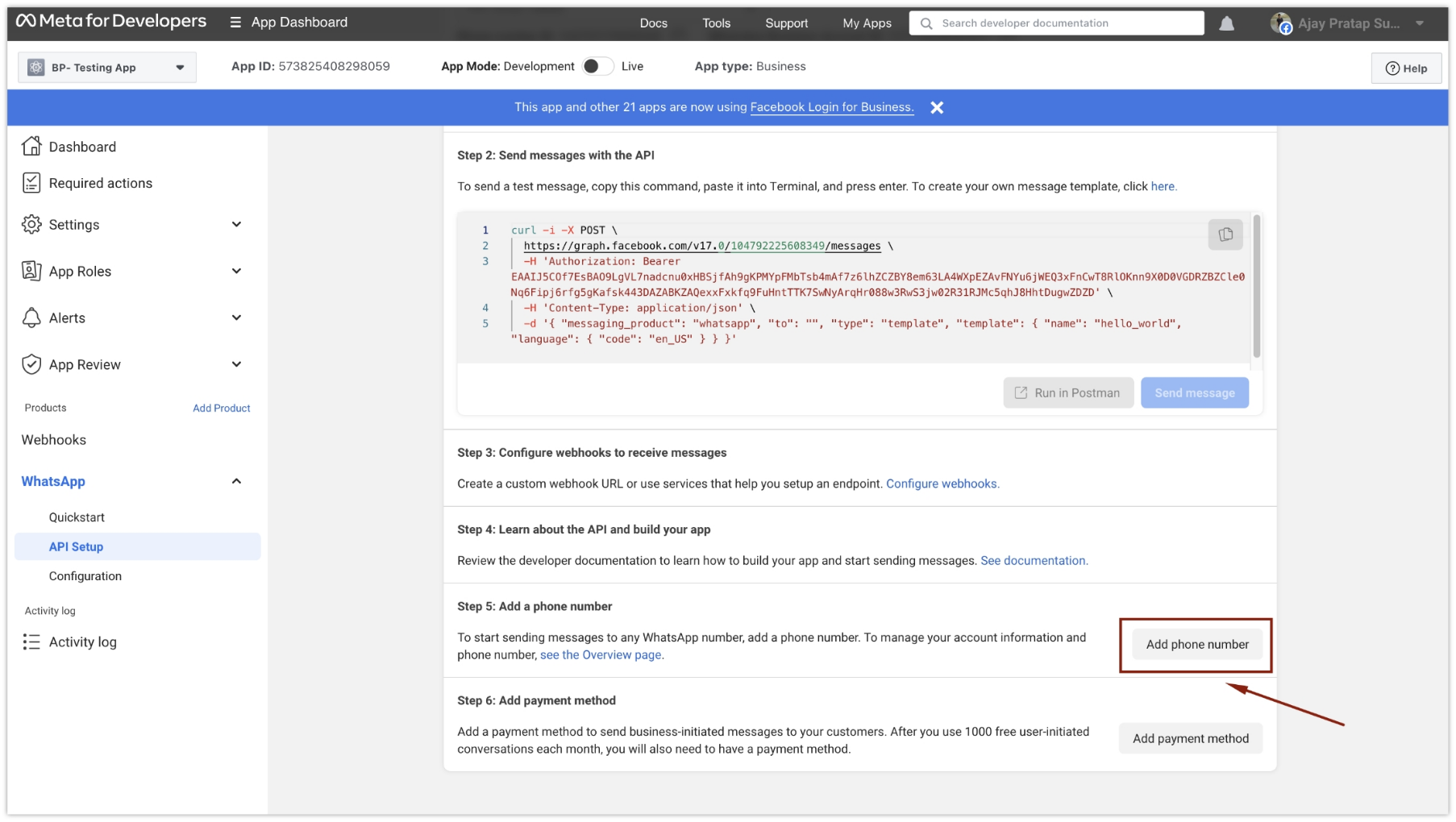
- In the API setup section, proceed to “Step 5.”
-
Click on the “Add phone number” button.
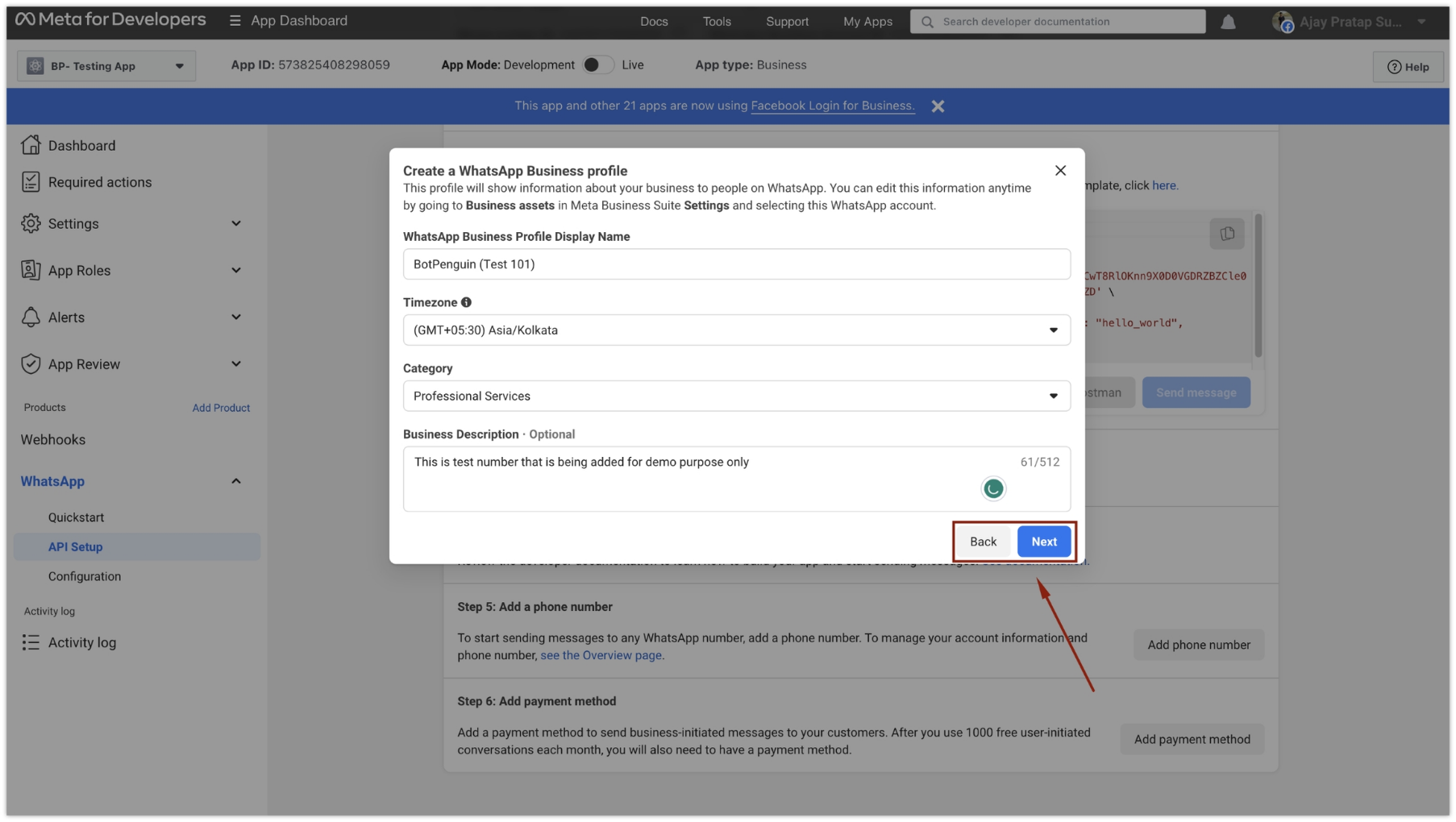
Step 6: Create Your WhatsApp Profile
- On the following screen, you will be prompted to create your WhatsApp profile.
-
Fill in the required details:
- WhatsApp Business Profile Display Name
- Timezone
- Category
- Business Description
-
After providing the details, click on the “Next” button.
Step 7: Request Verification Code
- On the next screen, enter your mobile number, which you want to verify.
-
Request a verification code by clicking the appropriate button.

Step 8: Verify the Number
- Upon receiving the verification code on your mobile number, enter it on the provided screen.
- Click on the “Verify” button to proceed.