> ## Documentation Index
> Fetch the complete documentation index at: https://help.convertalk.com/llms.txt
> Use this file to discover all available pages before exploring further.
# Team
Here, you can view detailed information about all your team members and manage their roles and permissions.
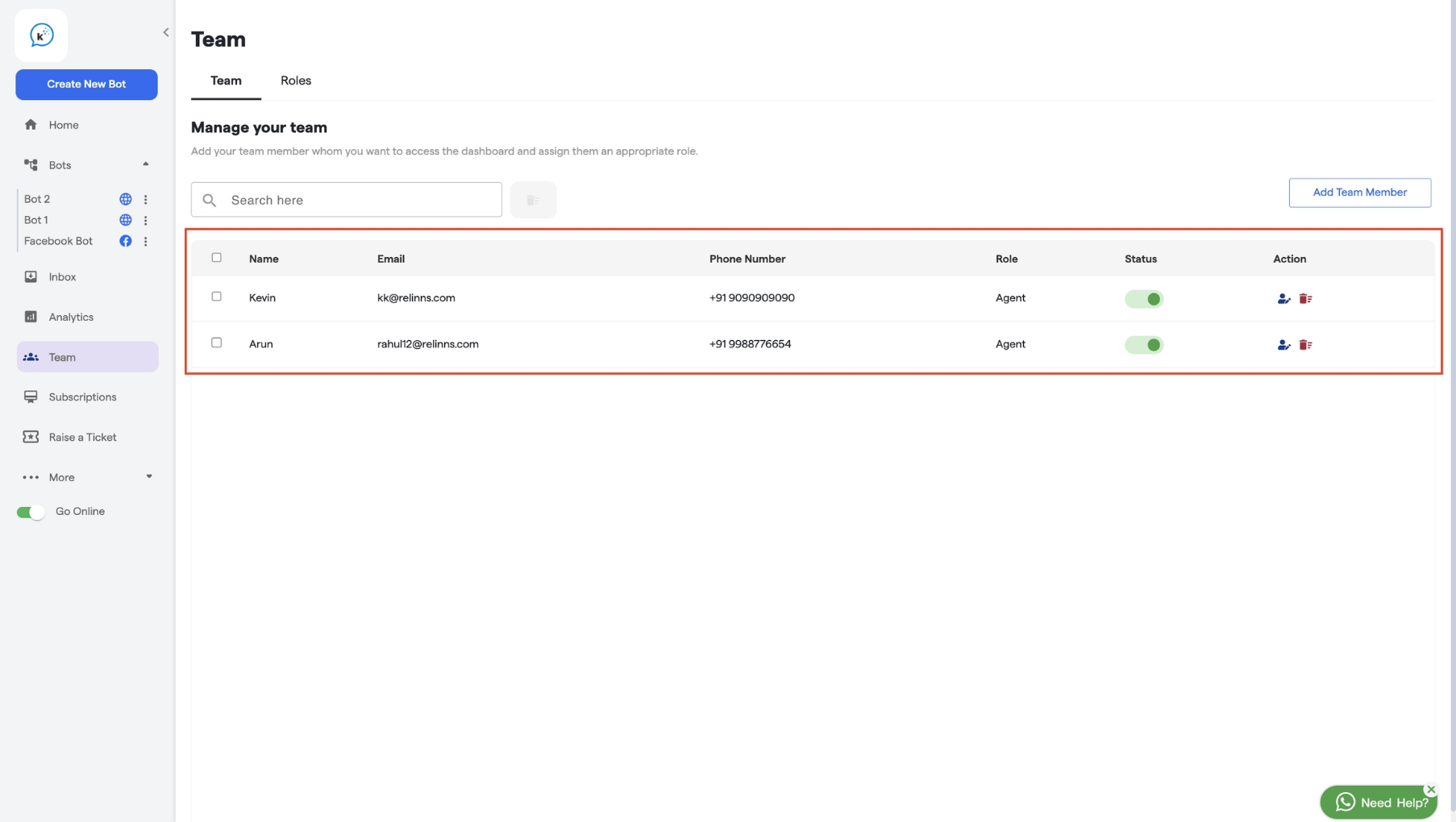 * **Status:** If the status of a member is **"active"**, the member can access the account. If the member is **“inactive”**, the member cannot access the account.
* **Action:** You can edit the roles and details of your team members. You can also remove team members from this section if needed.
* **Role:** You can see the role assigned to each team member from here.
In this section, you can add team members to the platform and assign roles and permissions.
## **How to add a Team Member**
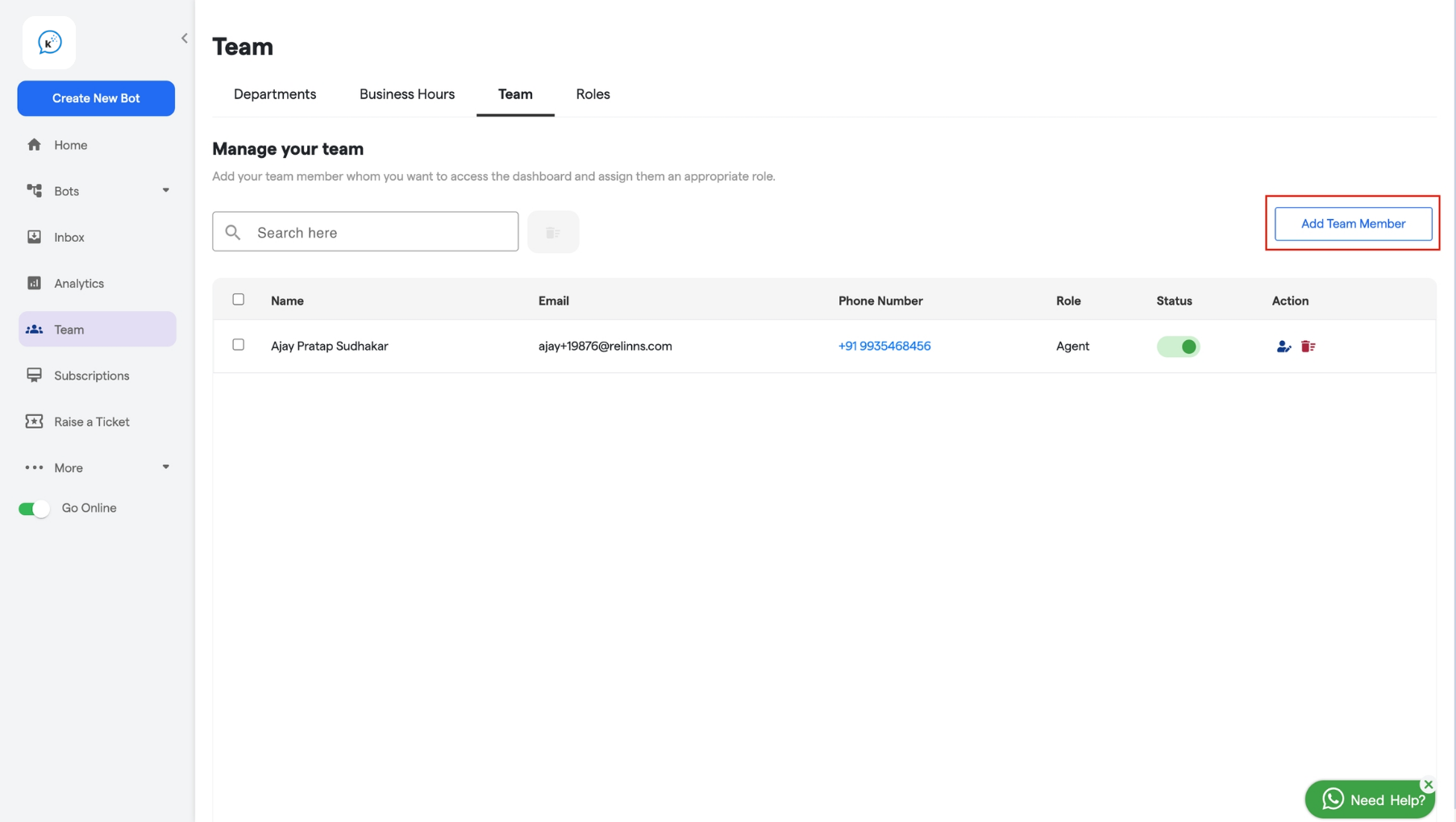
1. Click on the **Add Team Member** button as shown in the screenshot.
* **Status:** If the status of a member is **"active"**, the member can access the account. If the member is **“inactive”**, the member cannot access the account.
* **Action:** You can edit the roles and details of your team members. You can also remove team members from this section if needed.
* **Role:** You can see the role assigned to each team member from here.
In this section, you can add team members to the platform and assign roles and permissions.
## **How to add a Team Member**
1. Click on the **Add Team Member** button as shown in the screenshot.
 2. Enter the team member’s details, such as name, email, and phone number.
3. Choose a **Role** for the team member.
4. Set **Lead Visibility** to define whether they can view all leads or only the ones assigned to them.
5. Configure **Lead Assignment Permissions** based on the options provided.
6. Create a password and set a profile icon for the team member.
2. Enter the team member’s details, such as name, email, and phone number.
3. Choose a **Role** for the team member.
4. Set **Lead Visibility** to define whether they can view all leads or only the ones assigned to them.
5. Configure **Lead Assignment Permissions** based on the options provided.
6. Create a password and set a profile icon for the team member.
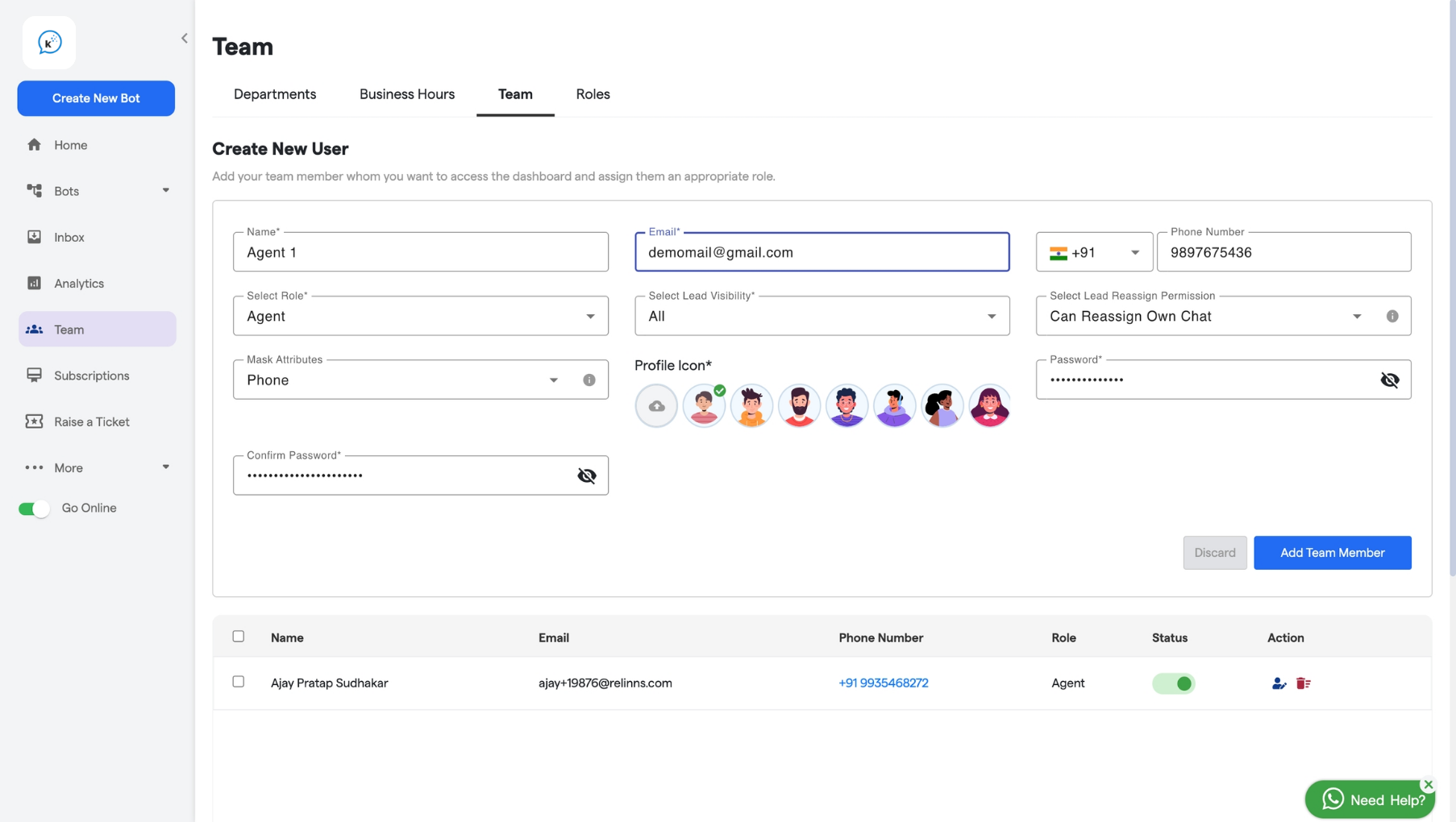 7. Click **Add Team Member** to finalize.
Now, let's explore how to create a new role and edit the permissions and details of your existing roles.
7. Click **Add Team Member** to finalize.
Now, let's explore how to create a new role and edit the permissions and details of your existing roles.