> ## Documentation Index
> Fetch the complete documentation index at: https://help.convertalk.com/llms.txt
> Use this file to discover all available pages before exploring further.
# Chats window
> This page contains all the necessary info about the chats section in Inbox panel.
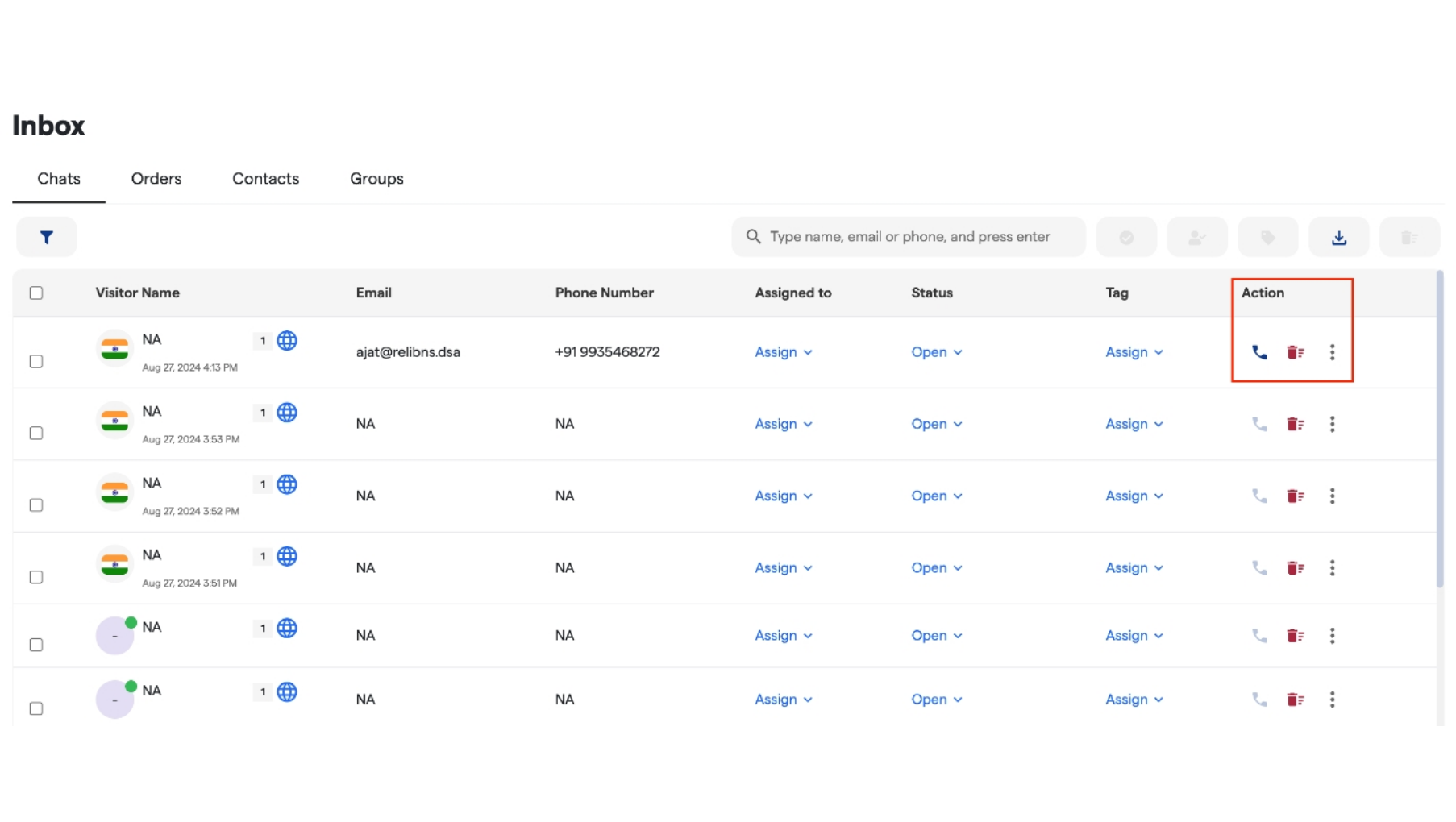
**Chat Section Overview - Omni-channel Inbox**
The chat section provides a unified view of all user interactions with the bot across various platforms. Here's how to navigate it:
1. **User Information**:
Displays columns for **User Name**, **Phone Number**, and **Email** for easy identification.
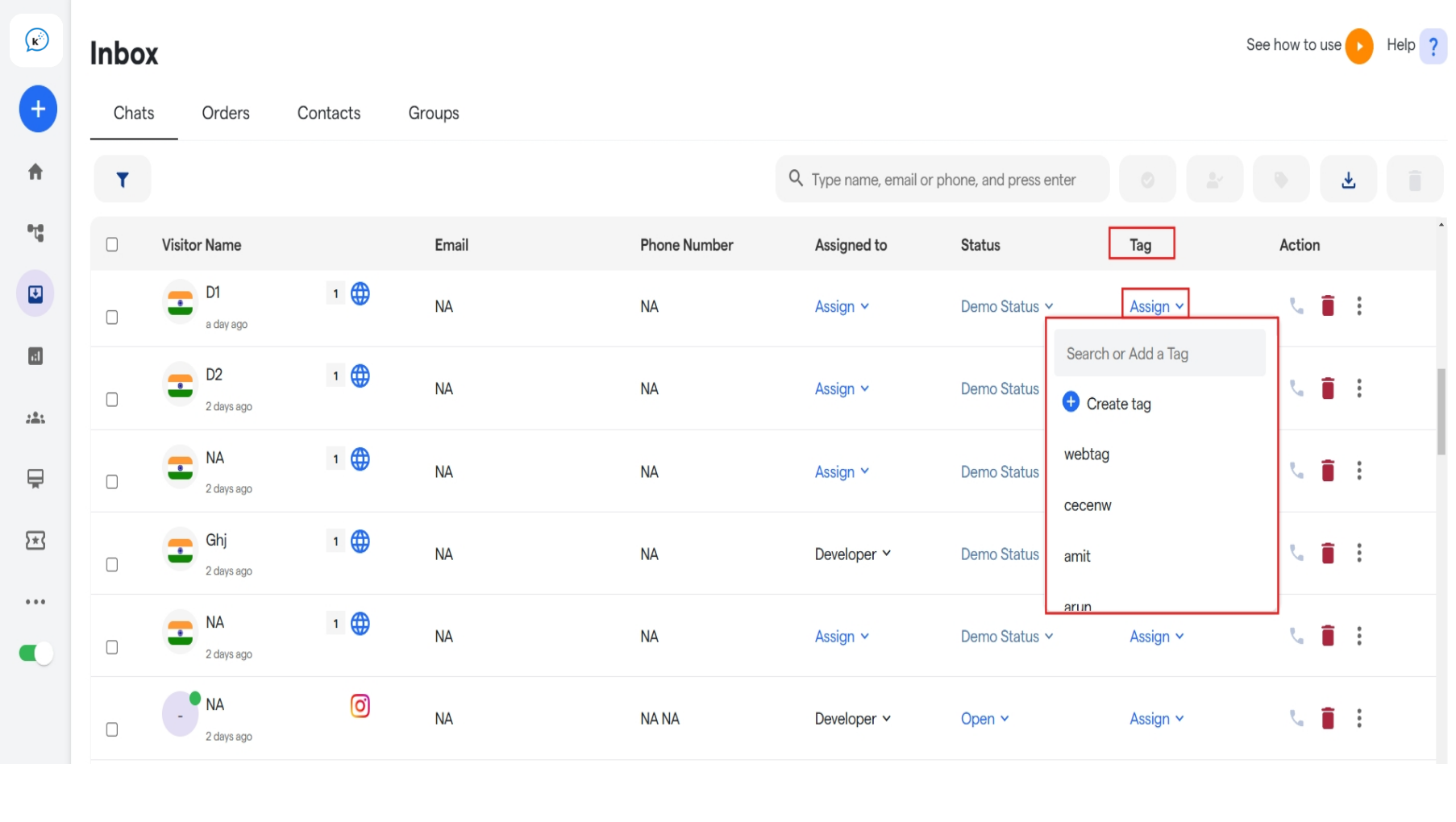
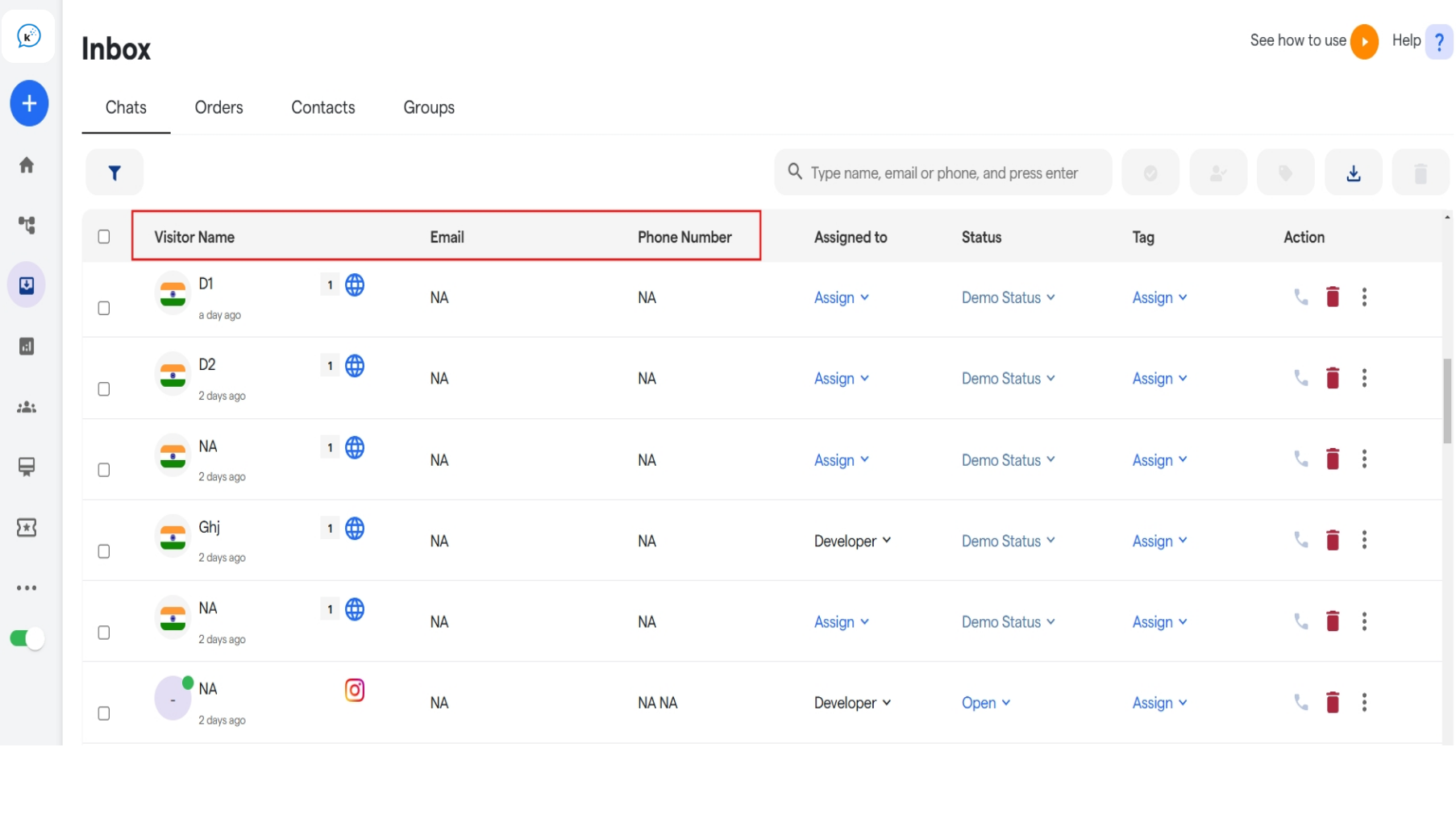 1. **Tag Assignment** :
* You can assign tags to specific chats.
* To create a new tag, click on the **"Create Tag"** button available in the dropdown menu.
1. **Tag Assignment** :
* You can assign tags to specific chats.
* To create a new tag, click on the **"Create Tag"** button available in the dropdown menu.
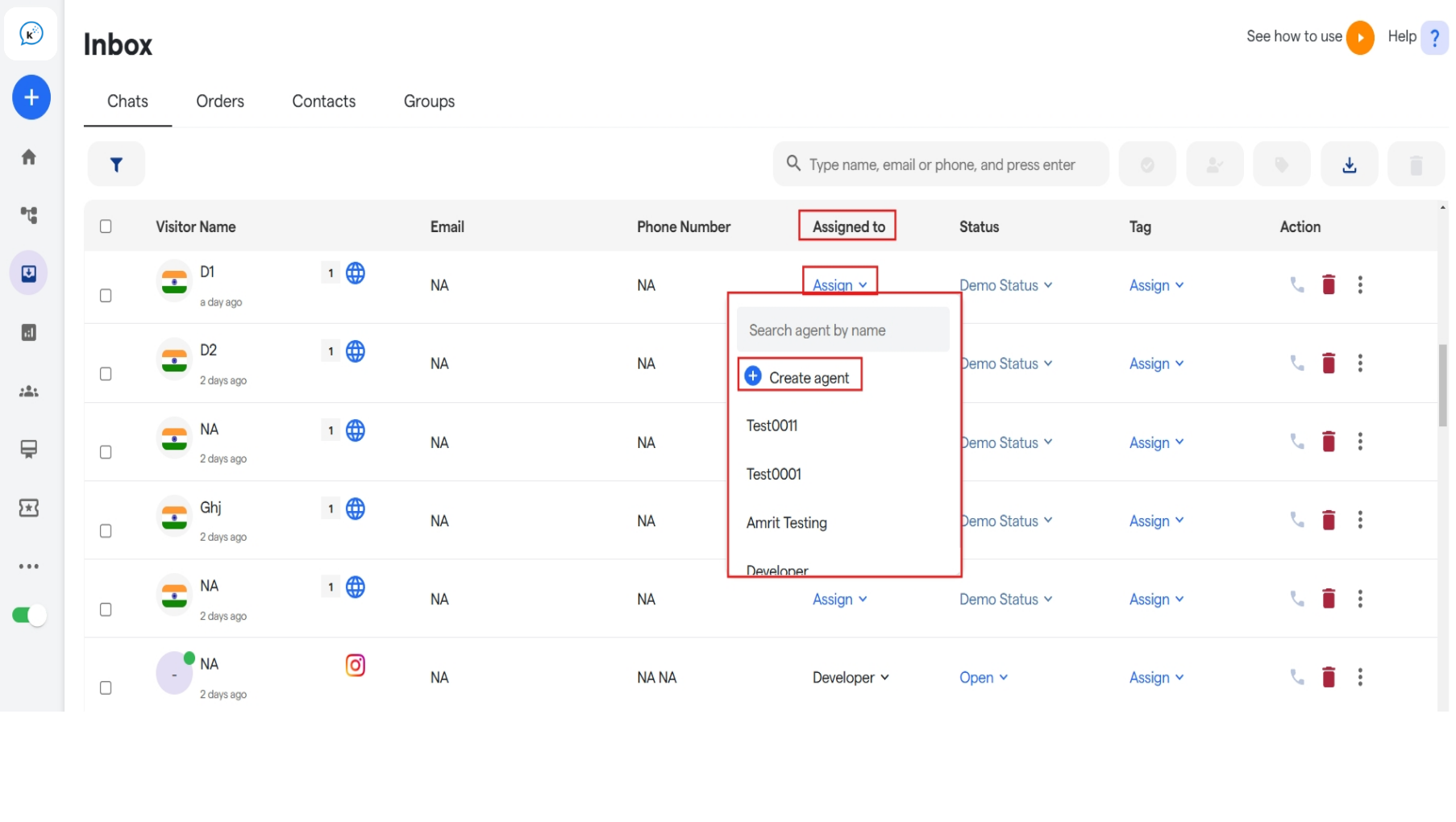
 2. **Assign Live Agent**:
* Assign a live agent to handle specific chats.
* If you need to add a new agent, use the **"Create Agent"** button in the dropdown menu.
2. **Assign Live Agent**:
* Assign a live agent to handle specific chats.
* If you need to add a new agent, use the **"Create Agent"** button in the dropdown menu.
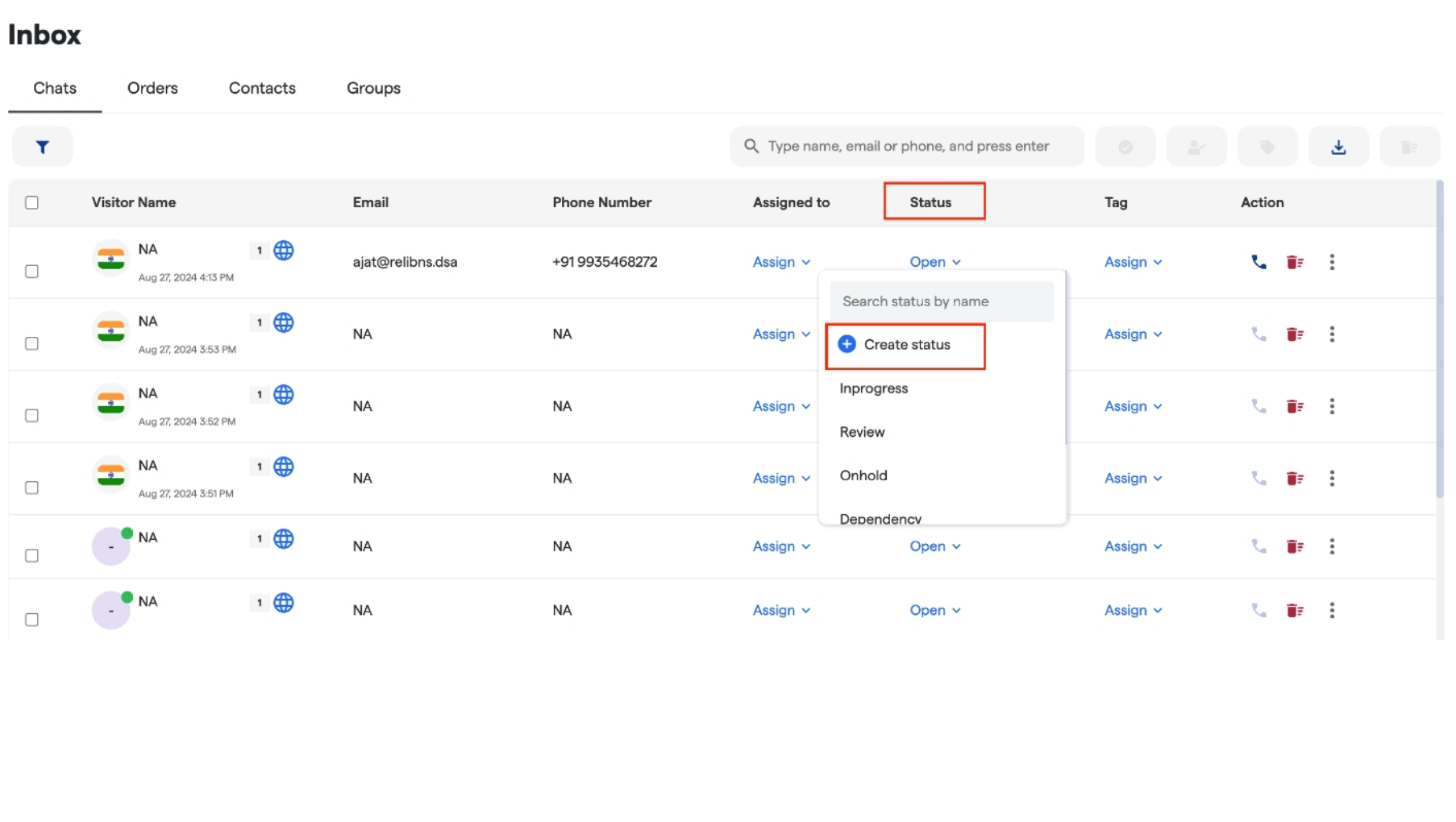
 3. **Chat Status**:
* Assign a status to each chat.
* Create new status via the **"Create Status"** button in the dropdown menu.
3. **Chat Status**:
* Assign a status to each chat.
* Create new status via the **"Create Status"** button in the dropdown menu.
 4. **Actions**:
* The action column contains buttons to **Call**, **Delete**, or **Copy** a user’s chat for further reference.
4. **Actions**:
* The action column contains buttons to **Call**, **Delete**, or **Copy** a user’s chat for further reference.
 ### **Chat Window Features**
When you open a specific chat, several useful tools and information are available to manage conversations efficiently:
#### **Top Navbar Tools:**
1. **Chat Translation**:
* Instantly translate the chat into your preferred language with the **Translate** button.
2. **Transfer Chat**:
* Transfer the current chat to another agent using the **Transfer** button.
3. **Download Chat Transcript**:
* Download the entire chat history by clicking on the **Download Transcript** button.
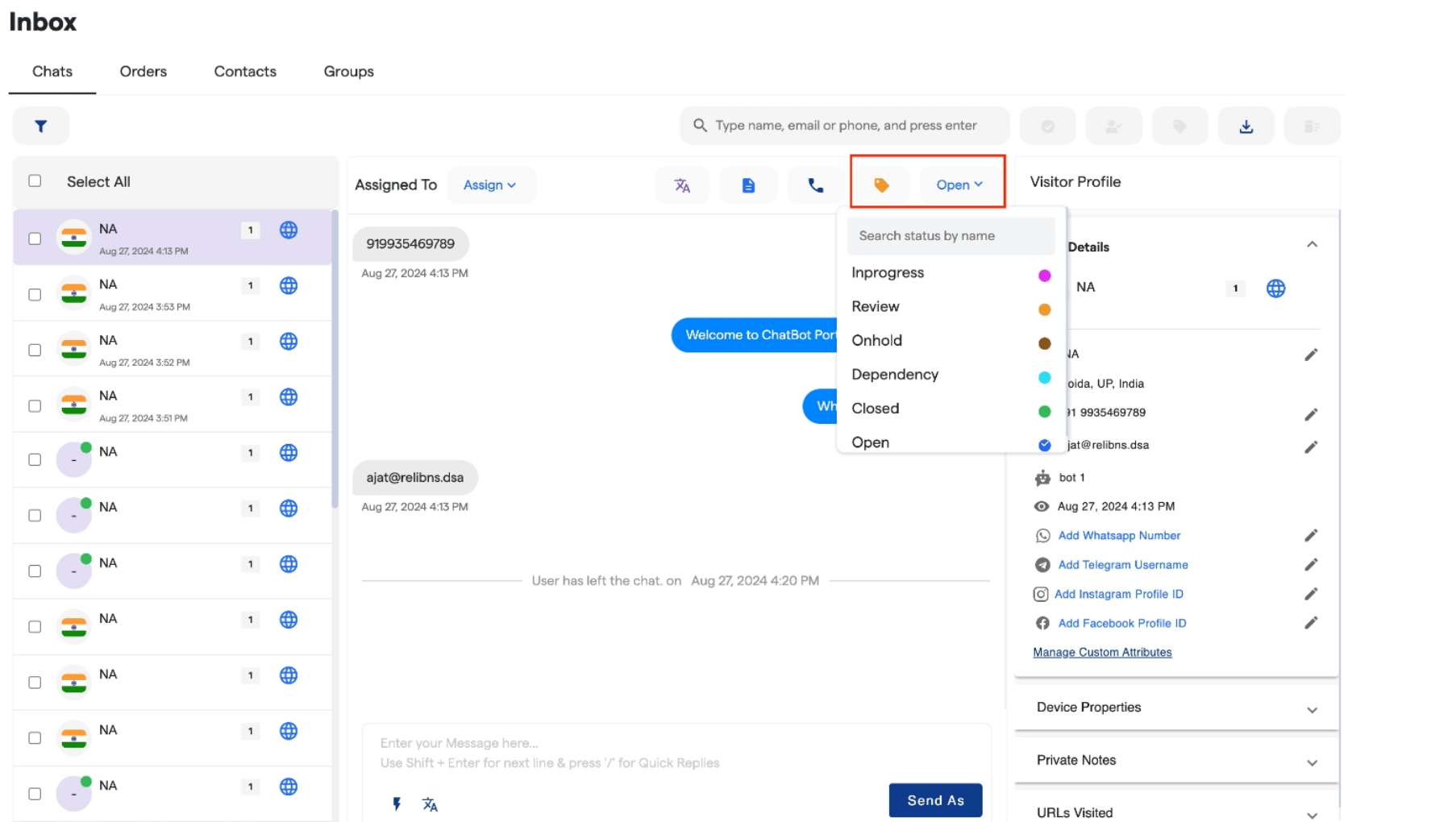
4. **Tag and Status Assignment**:
* Assign tags and status to the chat directly from this window. You can also create new tags or status using the provided options in the dropdown menus.
### **Chat Window Features**
When you open a specific chat, several useful tools and information are available to manage conversations efficiently:
#### **Top Navbar Tools:**
1. **Chat Translation**:
* Instantly translate the chat into your preferred language with the **Translate** button.
2. **Transfer Chat**:
* Transfer the current chat to another agent using the **Transfer** button.
3. **Download Chat Transcript**:
* Download the entire chat history by clicking on the **Download Transcript** button.
4. **Tag and Status Assignment**:
* Assign tags and status to the chat directly from this window. You can also create new tags or status using the provided options in the dropdown menus.
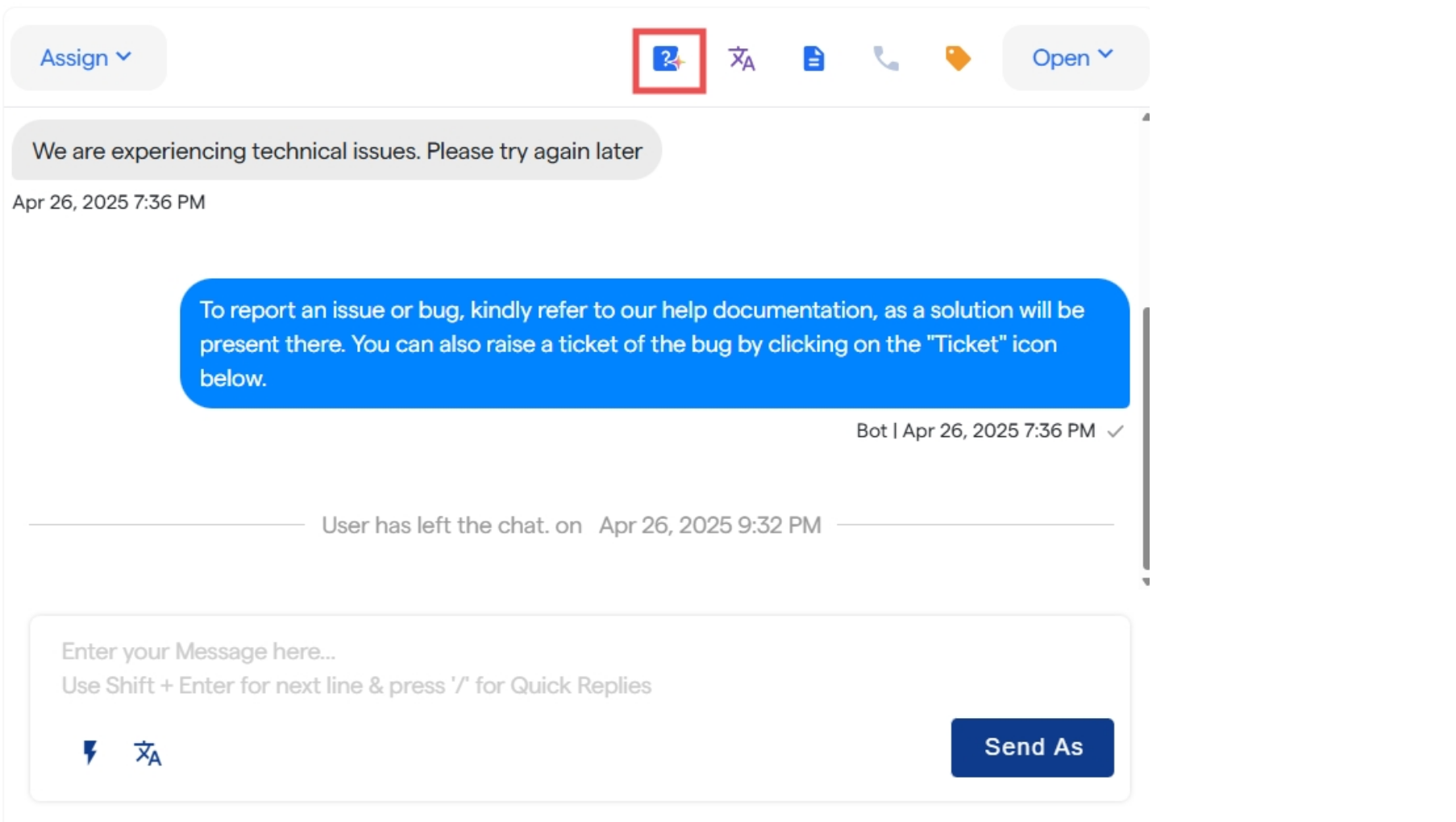
 5. **FAQ's:**
* Directly train for FAQ's using the icon given on the tab.
5. **FAQ's:**
* Directly train for FAQ's using the icon given on the tab.
 6. **Quick Replies**
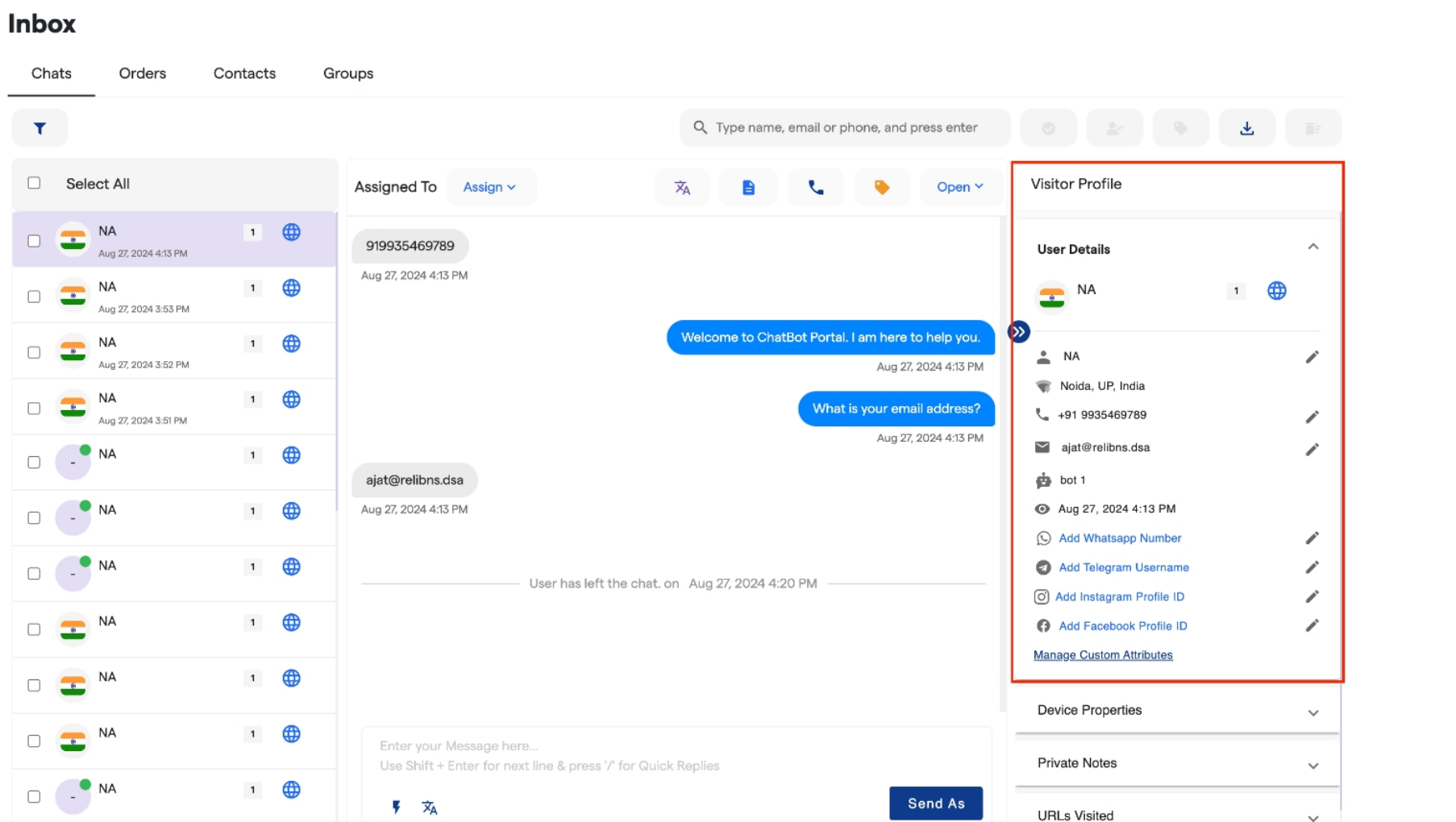
**Visitor Profile (Right Sidebar):**
* The **Visitor Profile** section provides key details about the user interacting with the bot, including:
* **Name**
* **Location**
* **Phone Number**
* **Email**
* Any **custom attributes** you've created, like preferences or additional details.
6. **Quick Replies**
**Visitor Profile (Right Sidebar):**
* The **Visitor Profile** section provides key details about the user interacting with the bot, including:
* **Name**
* **Location**
* **Phone Number**
* **Email**
* Any **custom attributes** you've created, like preferences or additional details.
 ### **Using Filters in the Inbox Panel**
The inbox panel provides various filters to help you segregate chats according to your needs. You can apply different filters to organize and manage your inbox efficiently.
* **Available Filters**: Use filters based on parameters such as **tags**, **status**, **assigned agent**, and more to narrow down specific chats.
* **How to Apply Filters**: Simply select the desired filter from the dropdown menu in the inbox panel, and the relevant chats will be displayed accordingly.
### **Using Filters in the Inbox Panel**
The inbox panel provides various filters to help you segregate chats according to your needs. You can apply different filters to organize and manage your inbox efficiently.
* **Available Filters**: Use filters based on parameters such as **tags**, **status**, **assigned agent**, and more to narrow down specific chats.
* **How to Apply Filters**: Simply select the desired filter from the dropdown menu in the inbox panel, and the relevant chats will be displayed accordingly.
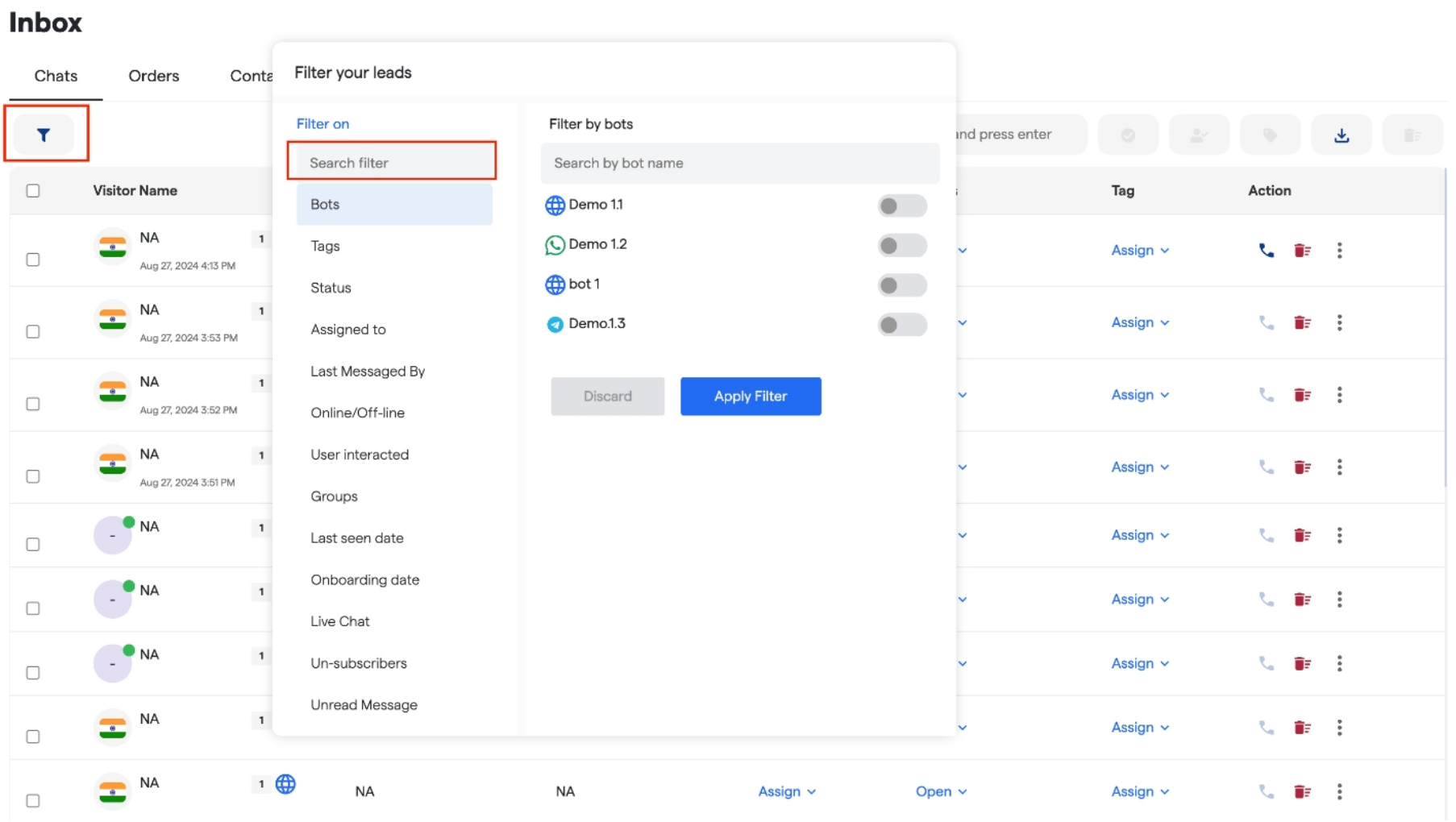 This feature makes it easier to sort and manage your chats based on specific criteria.