> ## Documentation Index
> Fetch the complete documentation index at: https://help.convertalk.com/llms.txt
> Use this file to discover all available pages before exploring further.
# Website Chatbot
> This guide will walk you through the steps to create your Website Chatbot.
 1. To create your Website chatbot , you first need to visit the Convertalk Dashboard
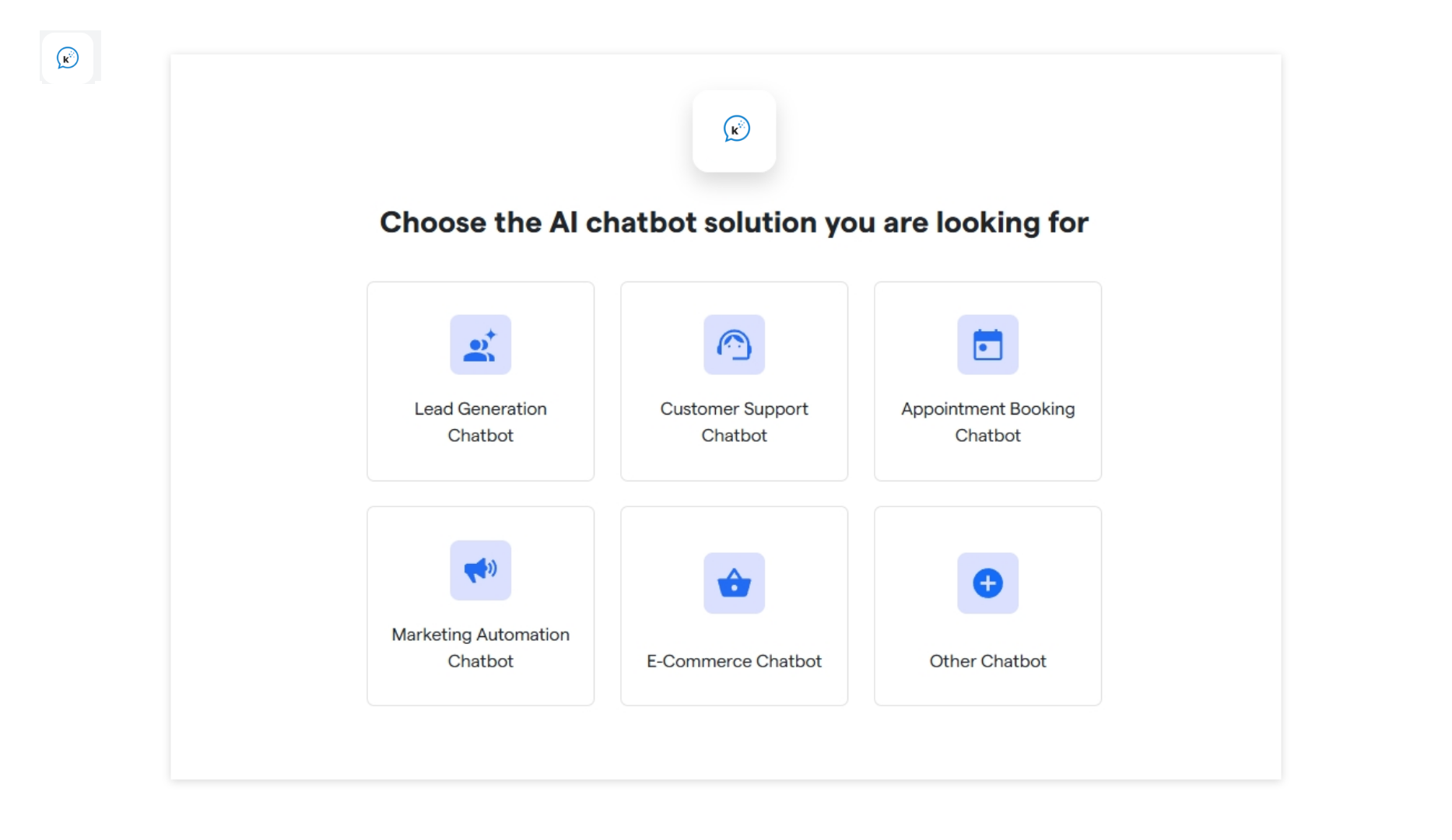
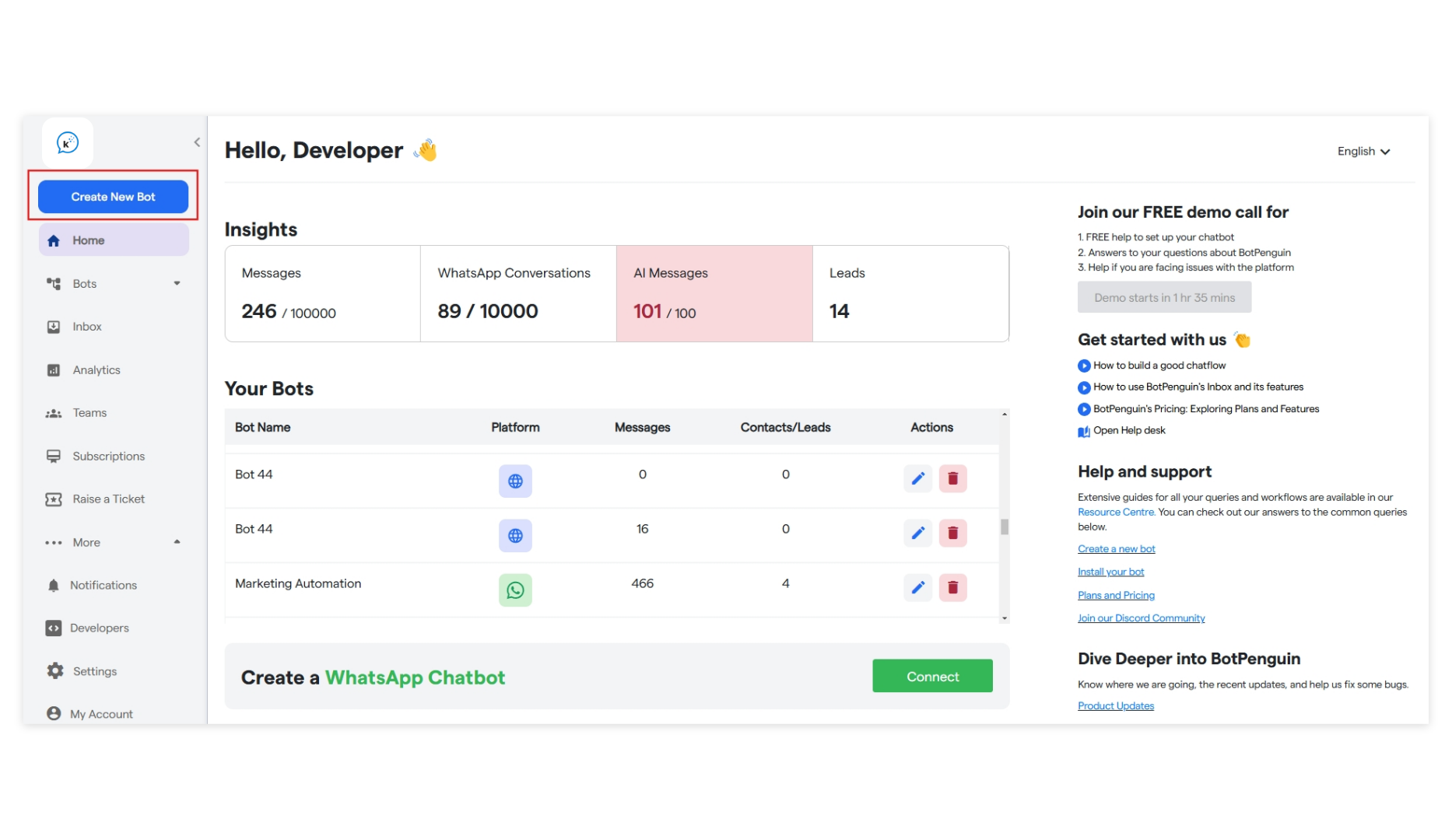 2. To start creating your new chatbot, click \*\*"Create New Bot." \*\*Select the primary purpose for creating your bot and proceed further.
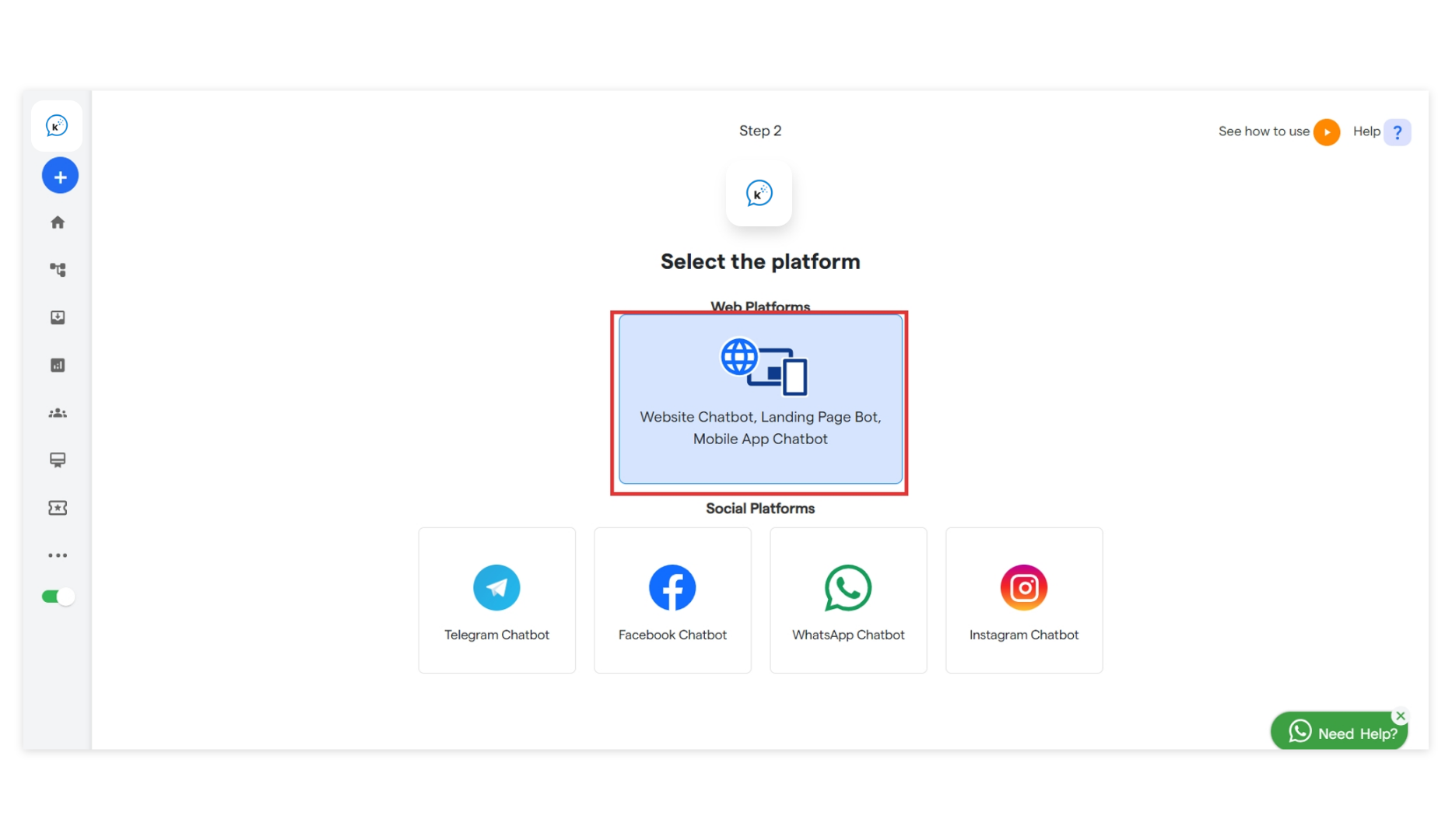
 3. Select the platform: “**Website Chatbot**”
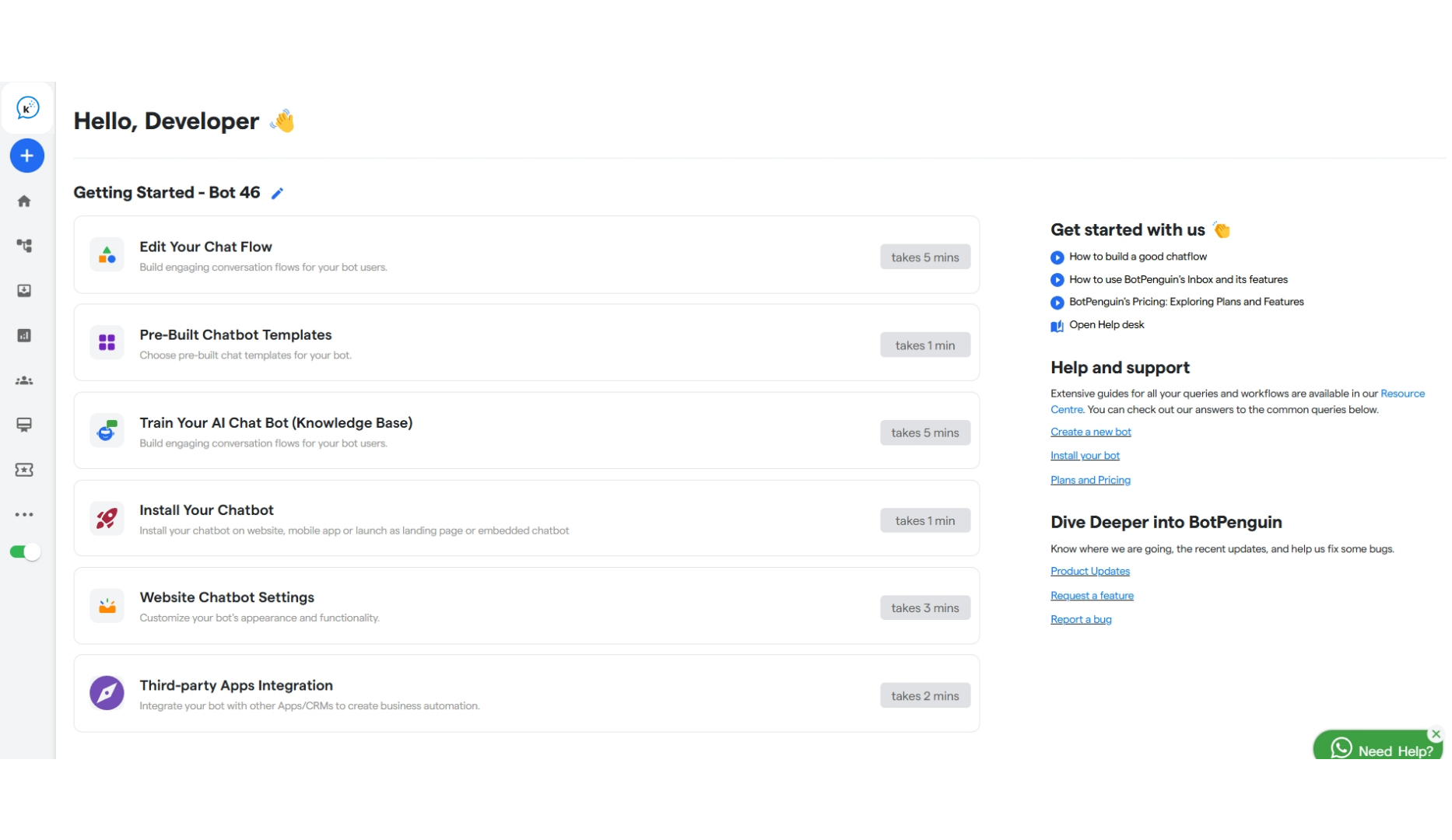
 4. You will see a notification: "**Bot has been successfully created.**” Your bot has been successfully created. Then you will land up on this page, now you can configure the below mentioned items using the below links:
 [Next: Landing Page Chatbot →](/how-botpenguin-works/landing_page_chatbot)